Coming soon

PhoneBridge

AI receptionist and outbound dialer for Google Voice — answers calls, replies to texts, runs campaigns, and connects to your business tools.

PhoneBridge — Phone dashboard with Voice Agent and SMS Agent toggles
Phone dashboard — macOS & Windows desktop app
Feature overview

Everything in one desktop app.

PhoneBridge is organized into five main areas — the same tabs you’ll use in the app. Nothing listed here is vapor; each item maps to a real screen in the product we’re shipping.

Phone dashboard

Your command center for Google Voice — calls, messages, and live AI activity.
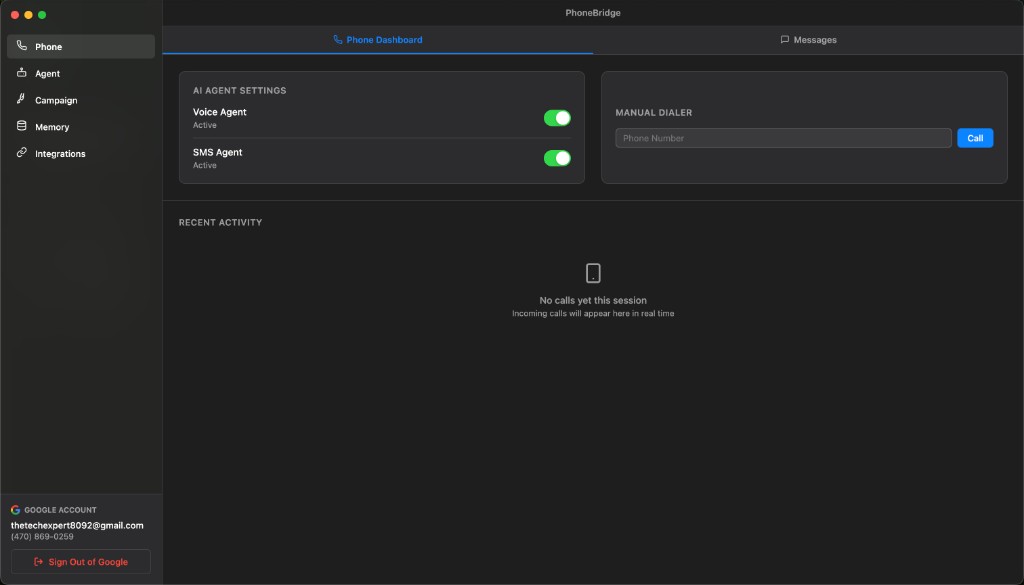
PhoneBridge phone dashboard
Phone dashboard — agents, dialer & call history
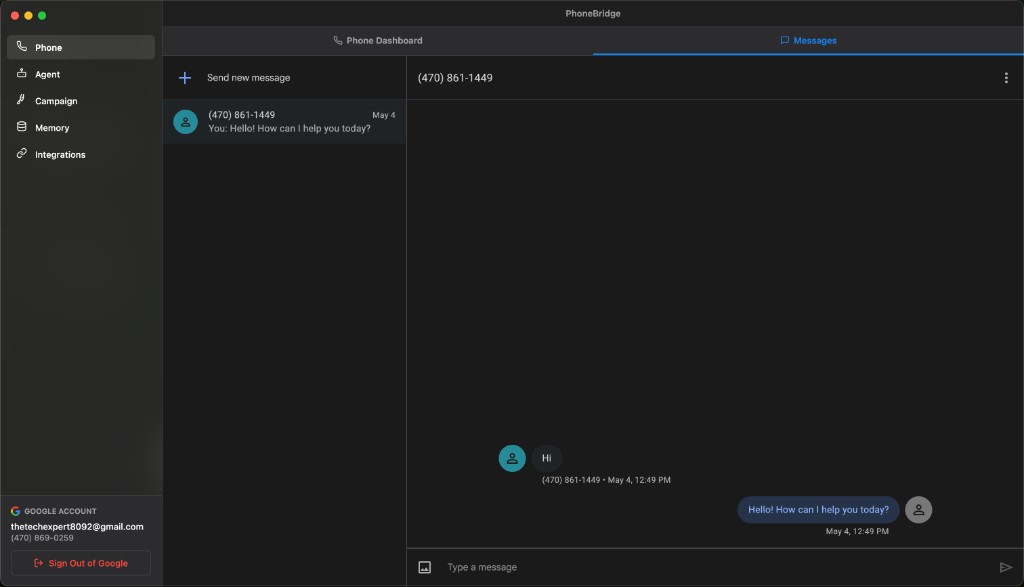
PhoneBridge Messages tab with SMS threads
Messages — Google Voice texting in-app

Google Voice built in

Sign in with your Google account and use your existing Google Voice number. No new carrier or phone contract.

  • One-click Google sign-in (setup wizard or dashboard)
  • Connection status while Google Voice loads
  • Sidebar shows Google email and Voice number
  • Sign out of Google Voice from the app

Messages tab

Switch to Messages to use embedded Google Voice texting in the same window. With the SMS Agent on, PhoneBridge can auto-reply to incoming texts.

  • Phone Dashboard vs Messages sub-tabs
  • Native Google Voice message threads in-app
  • Works with SMS Agent toggle on the Phone tab

Voice & SMS agents

Turn the AI receptionist on or off independently for calls and for text messages — right from the dashboard.

  • Voice Agent toggle (on/off)
  • SMS Agent toggle (on/off)
  • See active status at a glance

Manual dialer

Place outbound calls yourself from the same window — type a number and tap Call without leaving PhoneBridge.

Recent activity & call history

Every session is logged. Expand past calls to read full transcripts, duration, and timestamps. History persists between app restarts.

  • Live recent activity feed
  • Expandable call records with transcripts
  • Persisted call history (last 50 calls)
  • Clear history when you want a fresh log
  • Time-ago labels (e.g. “5m ago”, “2h ago”)

Live call transcripts

During an active call, see the conversation stream in real time — labeled as Caller or AI Agent — so you always know who said what.

Human handoff

Click Take Over to jump into any live call instantly. Microphone access is requested during setup so you can speak when it matters.

  • One-click takeover from AI to you
  • “You’re Speaking” indicator after handoff
  • Call timer while connected
  • Filter live transcripts by phone number
  • Phone nav shows a live-call indicator during calls
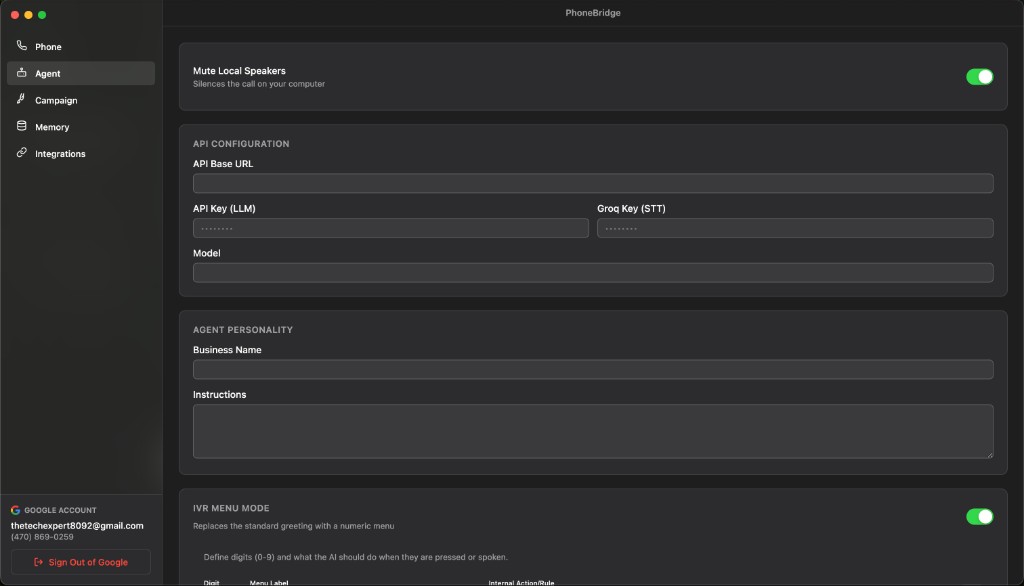
Agent settings

Configure how your AI sounds, thinks, and behaves on every call and text.

PhoneBridge Agent settings — API and personality
Agent — API keys, business name & instructions
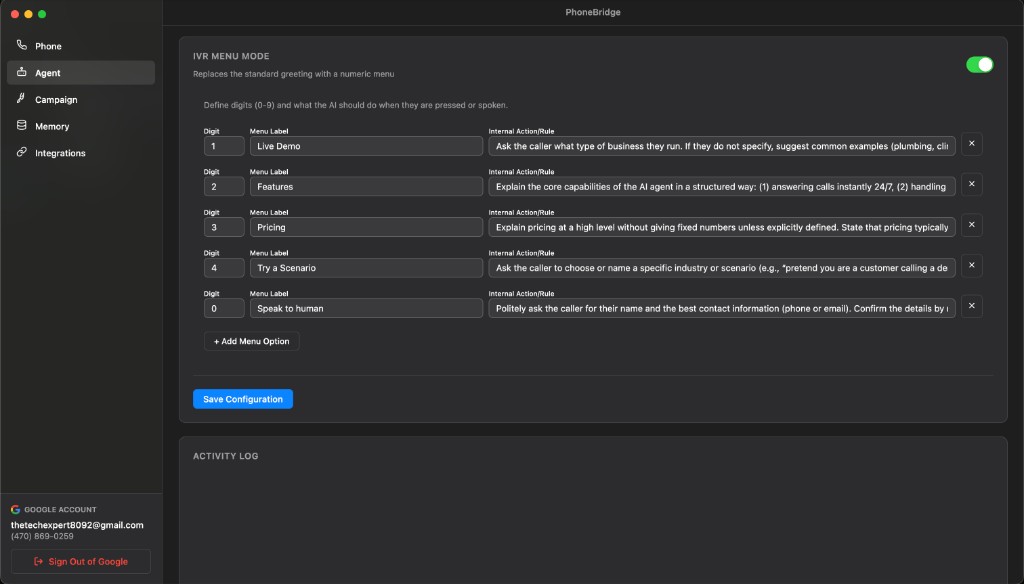
PhoneBridge IVR menu configuration and activity log
IVR menu mode & live activity log

Business personality

Set your business name and custom instructions (system prompt) so the agent greets callers correctly and follows your policies.

  • Business name field
  • Custom instruction / prompt editor
  • Configured during first-run setup wizard

Flexible AI & speech setup

Bring your own API keys. PhoneBridge supports OpenAI-compatible endpoints, Groq for speech transcription, and configurable models.

  • OpenAI-compatible API base URL
  • LLM API key (secure storage)
  • Groq API key for speech-to-text
  • Choose your model name

IVR menu mode

Replace the standard greeting with a numeric phone menu. Define digits (0–9), menu labels, and what the AI should do for each option — by voice or keypad.

  • Enable/disable IVR mode
  • Add multiple menu options
  • Custom action rules per digit

Mute local speakers

Optionally silence audio on your computer during AI-handled calls — useful in open offices or when the agent should handle the full conversation until you take over.

Activity log

A live debug-style log shows what the agent is doing — configuration saves, events, and status updates. Clear the log anytime; it persists across sessions.

  • Save Configuration for all agent settings
  • API keys stored securely (not shown again after save)

Outbound campaigns

Automated AI dialing for lead lists — upload a spreadsheet or add leads one by one.

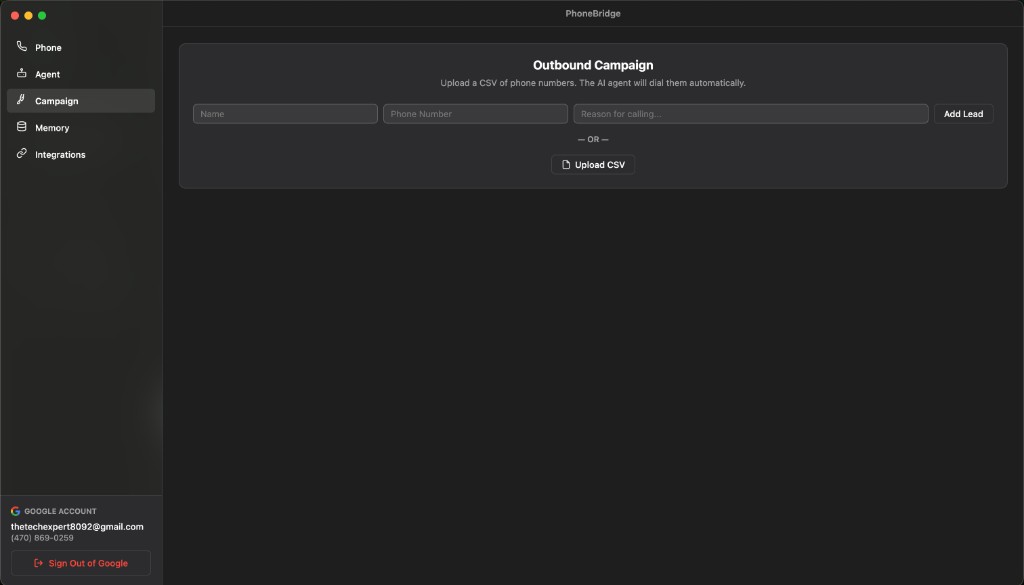
PhoneBridge outbound campaign — CSV upload and lead queue
Outbound campaigns — CSV import, manual leads & auto-dial queue

CSV lead import

Upload a CSV with name and phone columns. PhoneBridge parses your file and builds a calling queue automatically.

  • Detects phone / number columns
  • Optional name column mapping
  • Shows file name and lead count

Manual lead entry

Add individual leads with name, phone number, and a reason for calling — the AI uses that goal on the call.

Auto-dialing queue

Start and stop a campaign with one button. Watch each lead move through statuses: pending, calling, completed, or failed.

  • Start / Stop auto-dialing
  • Live queue with status badges
  • Clear queue when finished

Campaign history

Review completed and failed calls. Expand any row to see the campaign goal, then jump to the full call transcript in the Phone tab.

  • Recent activity list per campaign
  • Expandable rows with goals
  • Jump from campaign to Phone tab with number filter
  • Link to full transcript in Phone dashboard
  • Clear queue or campaign history separately
  • Campaign data saved between sessions

Caller memory

Long-term context so repeat callers are recognized and remembered.

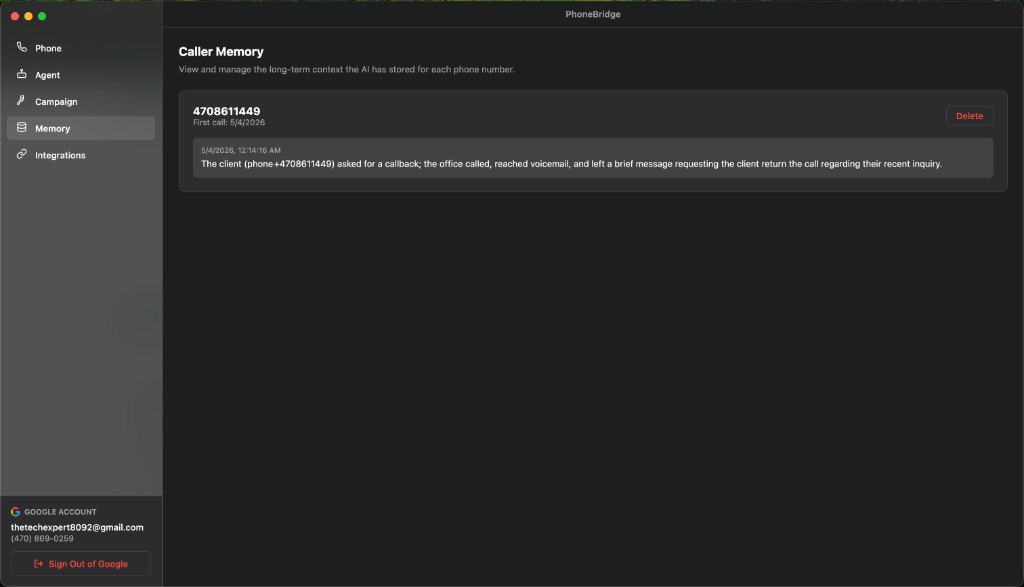
PhoneBridge caller memory — per-number conversation summaries
Caller memory — long-term context per phone number

Per-number profiles

PhoneBridge stores a history of interactions for each phone number — not just the current call.

  • View all remembered callers
  • First-call date for each number
  • Per-call summaries with date and time
  • Summaries from past conversations

Manage memory

Delete stored context for a specific number when you need a fresh start — useful after staff changes or wrong data.

Smarter repeat conversations

When someone calls back, the agent uses prior summaries so callers don’t have to repeat themselves every time.

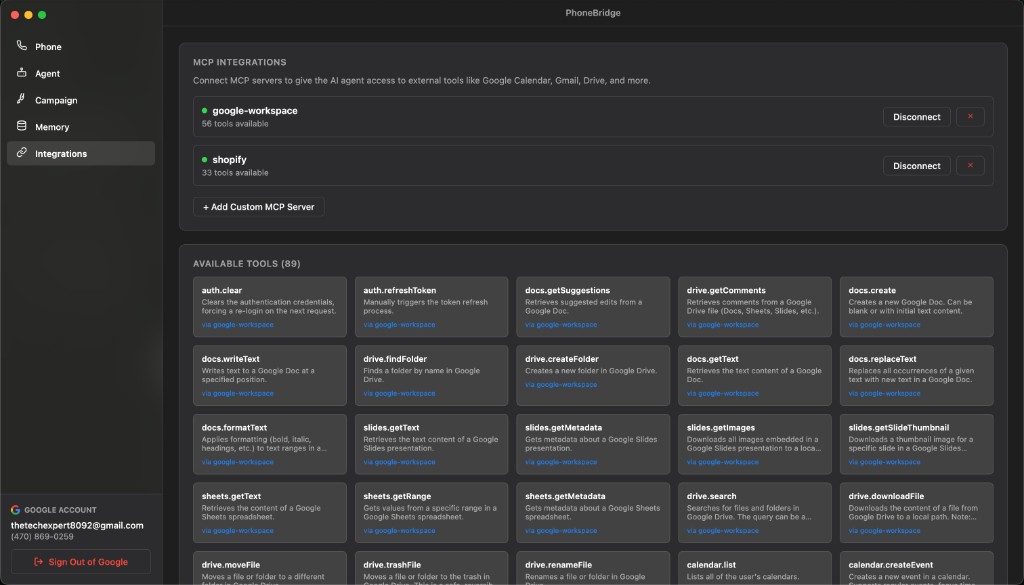
Integrations (MCP)

Connect external tools so the agent can check calendars, email, orders, and more during a conversation.

PhoneBridge MCP integrations — Google Workspace, Shopify, and available tools
Integrations — Google Workspace, Shopify & 89+ MCP tools

Google Workspace

One-click setup connects Google Calendar, Gmail, Drive, and related tools via MCP — so the agent can book appointments and reference your workspace.

Shopify

Connect your store with domain and Admin API token. The AI can look up orders, products, and customer info while on a call.

Custom MCP servers

Add your own MCP servers by name, command, and arguments — connect, disconnect, or remove as your stack grows.

  • Add custom integrations
  • View all available tools per server
  • Connect / disconnect / remove servers
  • Connection status and tool count per server
  • Browse all available tools (name + description)

Optional web search

Support for Apify (optional) enables web search capabilities when you need the agent to look up live information.

Onboarding

First-run setup & platform.

A guided wizard gets you from install to your first AI-handled call. PhoneBridge runs as a native desktop app — your Google Voice number, your API keys, your machine.

Welcome

Overview of PhoneBridge and what the AI can do for calls and texts.

Google Voice

Sign in with Google and connect the Voice number you already use.

Microphone

Allow mic access so you can take over live calls with one click.

Your business

Set your business name — refine prompts and integrations anytime in Agent settings.

macOS

Download .dmg installer

Coming soon · waitlist

Windows

Download .exe installer

Coming soon · waitlist

Requirements: Google Voice account · API keys for your LLM provider (OpenAI-compatible) and Groq (speech-to-text) · Node.js 18+ if building from source.

Get started

Simple to start.

Four steps from download to live AI coverage on your business line.

Step 01

Install

Download PhoneBridge for Mac or Windows when your waitlist invite arrives.

Step 02

Connect Google

Run the setup wizard and link Google Voice in a few clicks.

Step 03

Configure agent

Add business details, prompts, API keys, and optional integrations.

Step 04

Go live

Turn on Voice and SMS agents from the Phone dashboard — you’re covered.

Early access

Join the waitlist.

Be first to get download links for Mac and Windows when PhoneBridge launches.

Questions? Call (470) 861‑1449 · hello@codewright.ai